Guides › Images and graphics
How to compress images in the browser
Last updated 10 October 2026 · Written by Souren Das
Image Optimizer resizes and recompresses photos and screenshots in this tab so an email, a chat, or an application form will take them. You set scale, quality, and format, and each row shows the size before and after. There is no promised percentage, because a screenshot and a camera photo do not shrink the same way. The images are not uploaded to a FileTools Kit server.
Why phone photos are so big
A current phone camera saves 12 to 50 megapixels, often 4000 by 3000 pixels or more, at high quality. That is far more than anyone needs to read a receipt or see a face in an email. A form that displays the photo at 400 pixels wide, or a portal that caps uploads at 200 KB, simply does not need those pixels. Compressing is mostly a matter of throwing away detail nobody will see.
What to change first
Resize first if the photo is 4000 pixels wide and the receiver will only display 1200. Quality second. JPEG and WebP are lossy formats, and a second pass on an already-small JPEG mostly adds blur without saving much. PNG screenshots shrink from resizing, not from a quality slider.
Keep the original. The download is the file you send; the source stays where it was until you delete it yourself.
Steps
- Open Image Optimizer.
- Drop images on Select or Drop Images to Compress, or click it to browse. You can add several at once. Export HEIC photos as JPEG on the phone first.
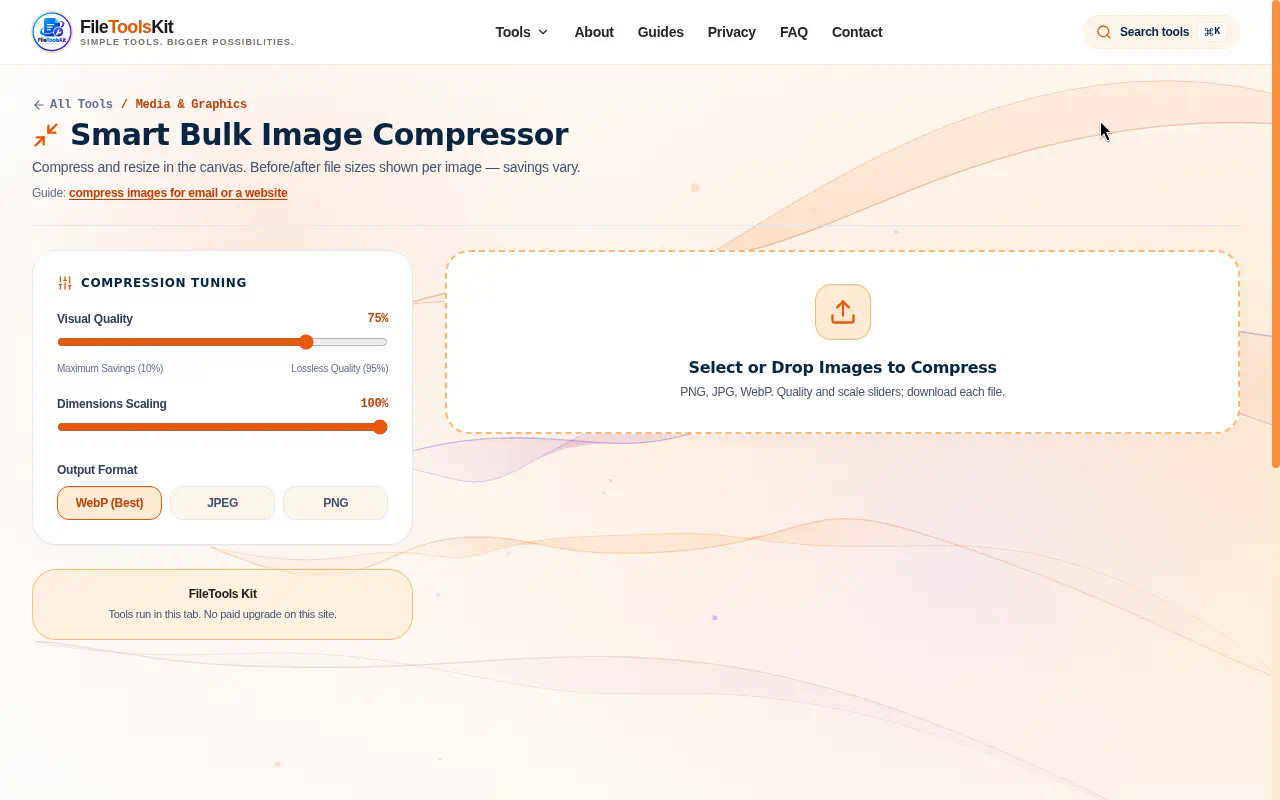
- Lower Dimensions Scaling first, then Visual Quality, and read the new size on each row.
- Pick an Output Format: WebP (Best), JPEG, or PNG.
- Press Save on a row to download that image. The file is named after the original with _opt added, for example receipt_opt.jpg.
- Open the download and look at the part that matters, a face, a line of text, or a signature, at full size.
The three controls
Visual Quality runs from 10 percent (Maximum Savings) to 95 percent (Highest quality) and starts at 75. Dimensions Scaling runs from 25 to 100 percent of the original width and height. Output Format is WebP, JPEG, or PNG; WebP is the default because it is usually the smallest. PNG ignores the quality slider because PNG is lossless, so a PNG only gets smaller when you scale it down. Every image re-saves when you move a control, and the panel totals Original Total, Compressed Total, and Net Bandwidth Saved across the list.
Scaling usually saves more than quality because the pixel count drops with the square of the scale. At 50 percent, a 4000 by 3000 photo becomes 2000 by 1500, a quarter of the pixels and still plenty for email or a form. If a new file comes out larger than the original, which happens with a JPEG that was already small, send the original.
Size targets that work
- Passport-style photo for a form capped at 20 to 50 KB: JPEG, scale until the photo is near the pixel size the form names, quality 60 to 75.
- Document photo for a 200 KB cap: JPEG, long side around 1200 to 1600 pixels, quality around 60 to 70. Text should stay readable.
- Email or chat: long side around 1600 to 2000 pixels, quality 75. Most photos land well under 1 MB.
- Website images: WebP at the size the page displays, covered in compress images for a website.
Many Indian exam and job portals state both a size range in KB and pixel dimensions for photos and signatures. Read both lines of the notice; meeting the KB limit with the wrong dimensions can still be rejected.
Common mistakes and fixes
- Muddy text in a screenshot. Raise quality, or keep PNG and scale down instead.
- Black background on a logo. Not here: JPEG has no transparency, so the tool fills transparent areas with white. Keep WebP or PNG if you need the transparency.
- The portal refuses WebP. Many older forms only accept JPEG. Switch Output Format to JPEG.
- The file grew. The original was already efficient. Send the original.
- Compressing the same file again and again. Each lossy pass adds artefacts. Start from the original every time.
Privacy
Images are decoded and re-encoded on a canvas in this tab. Saving through the canvas also leaves camera metadata such as GPS location behind, which is useful before you post a photo publicly. FileTools Kit does not receive the images. See what stays in the tab.
FAQ
Can I set an exact KB target?
No. Move the sliders and read the size on the row. Scaling is the fastest way to land under a cap.
Is there a download-all button?
No. Each row has its own Save button.
Does it handle HEIC or AVIF?
Only if your browser can decode them, and most cannot decode HEIC. Export JPEG from the phone.
Will it straighten a sideways photo?
The canvas draws the photo the way your browser displays it, so a photo that looks upright in the browser is saved upright.
Format choice is covered in JPG, PNG, or WebP. Related guides: convert PNG, JPG, and WebP, get a PDF under 1 MB or 200 KB, phone photos to a PDF for a form.
Written by Souren Das, FileTools Kit, Bengaluru. Last updated 10 October 2026. Spotted a mistake or a step that does not match the tool? Email support@filetoolskit.com and I will fix it. See how tools and guides are tested.